
Command Centre overview
Clients and Progress
Finding and tracking clients across the Clients list and the Progress board.
Clients and Progress
Two screens in the Command Centre help you find a client and see where they are: the Clients list, for looking up a specific org, and the Progress board, for seeing the whole pipeline by stage.
The Clients list
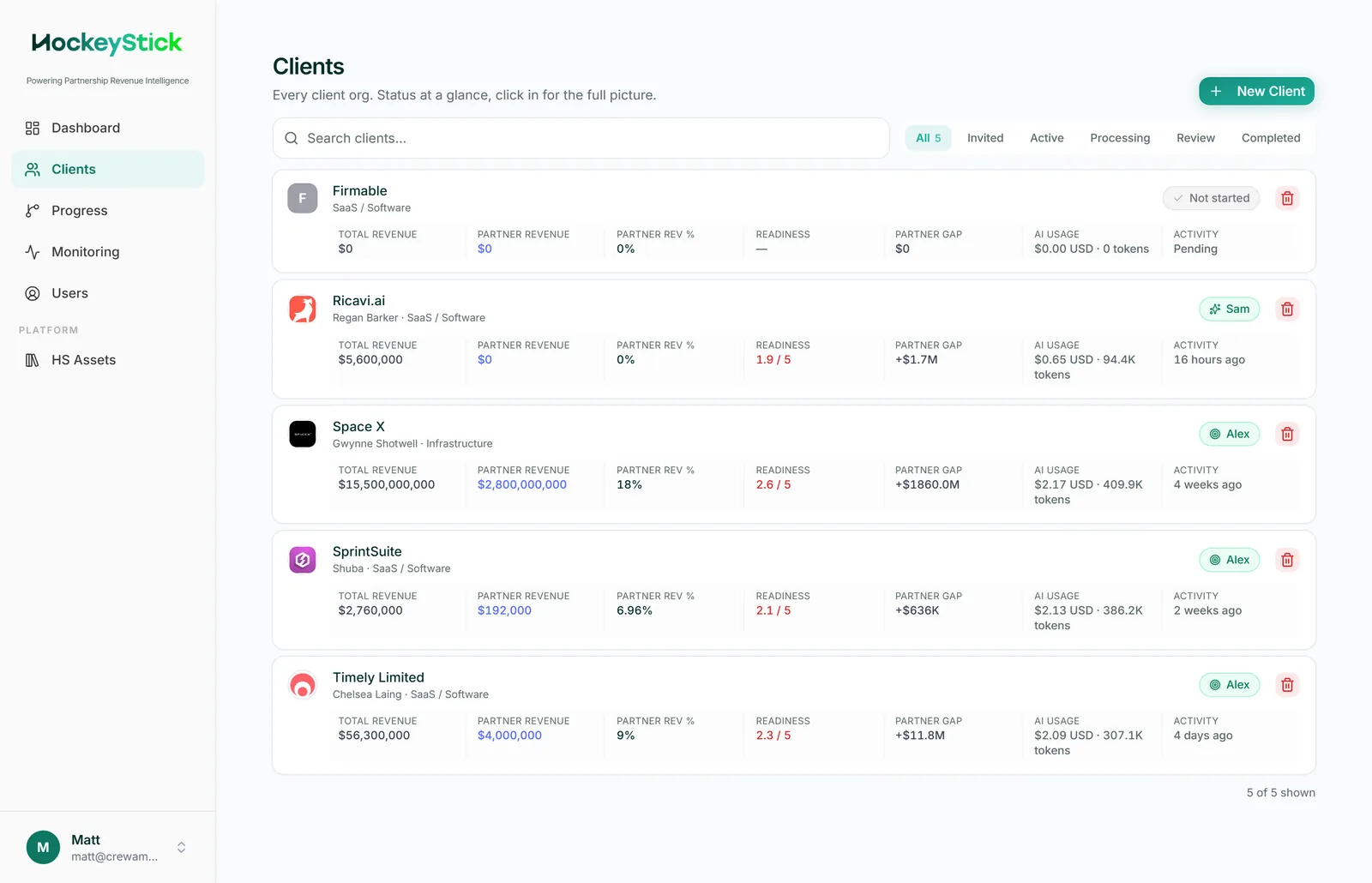
Clients opens on a card per org. Each card shows the org, contact, industry, current stage, readiness score, revenue and token/cost usage. To find a client, use the search box or the status filter (All, Invited, Active, Processing, Review, Completed). Click a card to open that client's detail page. To add a new org, use the New Client button in the top right, which starts the New Client wizard.
The client detail page
Opening a client gives you a set of tabs across the top:
- Journey: the default; the lifecycle with per-agent Generate, Open and Review & publish actions.
- Intake: view and edit the client's intake answers, with CSV export.
- Worksheets: browse the Sam worksheet store.
- Brand: the client's logo, colours and contact invites.
- Partnership Growth Roadmap: the surface where you edit Riley's plan.
- Packs: pack version history and publish controls.
- Products: the Align or Align+Activate allocation for the org.
- Users: the client contacts on the account.
A right rail shows client info, activity and the readiness score.
The Progress board
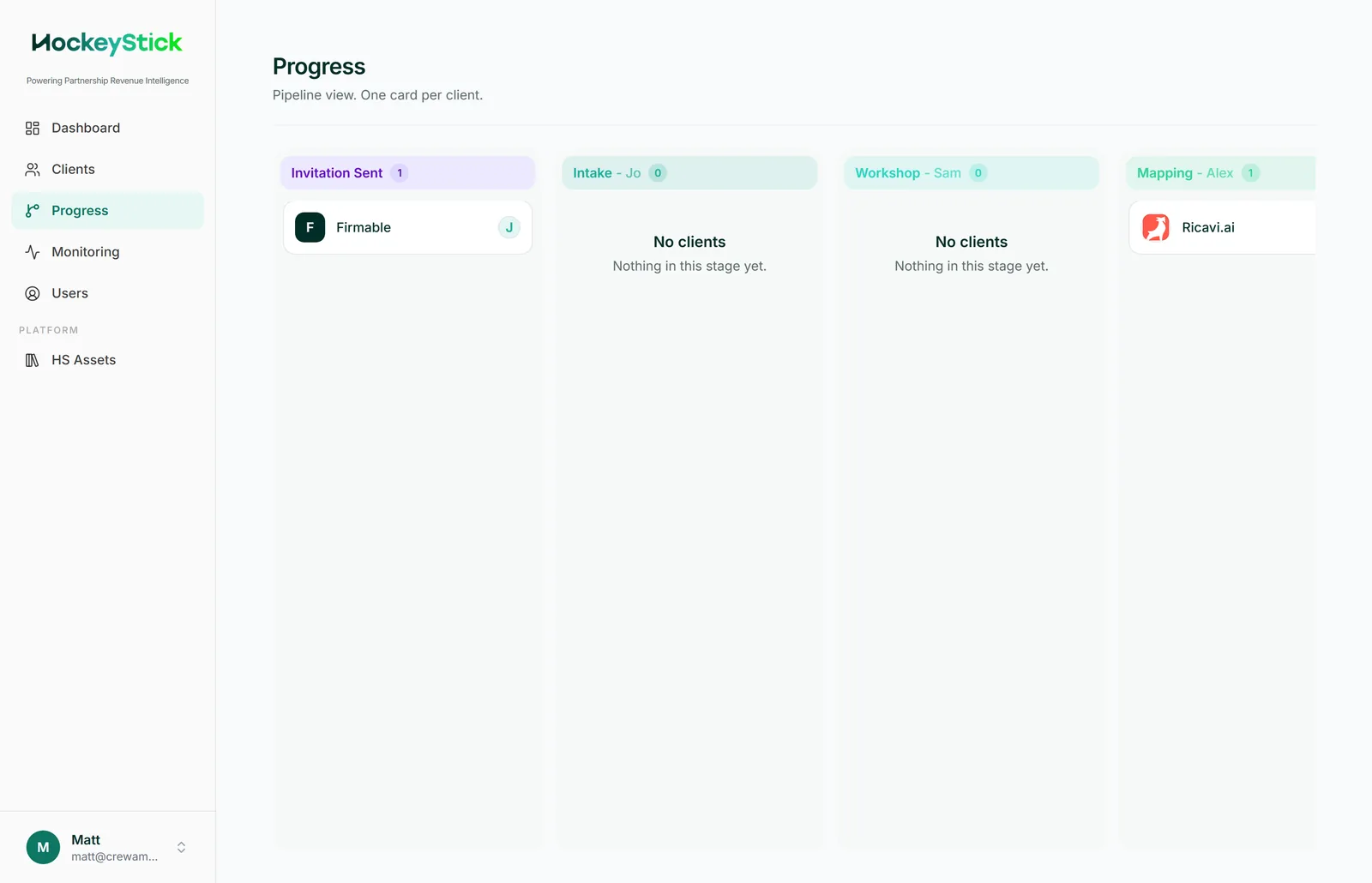
Progress is a kanban of every engagement, bucketed by stage: Invited, Intake, Workshop, Mapping, Alignment and Completed. The cards are read-only, so this is a monitoring view, not a drag-and-drop board (stages advance automatically as each agent's work is published). Click any card to open that client's detail page.